.png?width=420&height=80&name=The%20smart%20floor%20plan%20(1).png)
The PDF File feature allows you to create a complete document bringing together your entire project on Visuary. You can generate a commercial or presentation file in PDF format, including plans, 3D renderings, comments, measurements, and project information, which you can view, share, or print.
Accessing the PDF File
To access the PDF File feature, you must have an ESSENTIAL or INTEGRAL subscription.
The PDF File tab is located in the top bar of any project page.
With the ESSENTIAL subscription, the PDF File is generated automatically from the current plan. It includes:
-
One page of the 2D plan
-
One page of comments
-
One page of measurements
With the INTEGRAL subscription, you can create a fully customizable PDF File: edit, add, or remove pages and choose their order.
Pages available in the PDF File
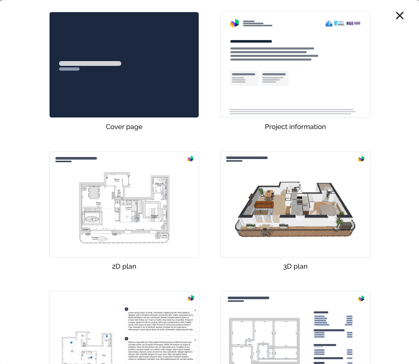
The commercial file can include the following pages:
-
Cover page
-
Project information
-
2D plan
-
3D plan
-
Realistic renderings
-
Plan comments and photos
-
Budget overview
-
Surface area table
-
Measurements
-
Final page
Page customization
With an INTEGRAL subscription, you can choose the order and type of pages you want to add to the file. To do so:
Click on Add a page to choose from the different templates.
-
Edit the text directly by clicking on it.
-
Select the plan variant (Current Plan, Variant A, etc.), the floor, and the view mode (separated, layers, etc.) at the bottom right of each page.
-
To modify plan pages, click on the lock icon to unlock the page. Once your changes are complete, lock the page again.
Don’t forget to save your project to keep your changes.
You can also adjust the layout for renderings and comments using the icon on the right side of the page : 
This allows you to choose how the elements are arranged on the page.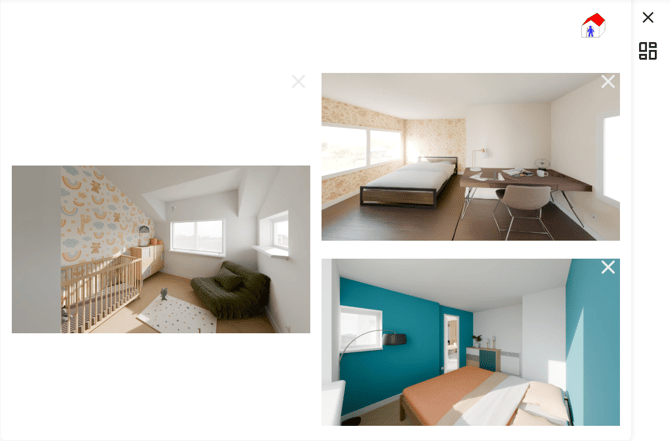
Add your logo
You can add your company logo from your account Settings.
To learn how to do this: How do I add my logo and my company information?
With an ESSENTIAL subscription, the Visuary logo remains visible at the bottom right of each page. To remove it, an INTEGRAL subscription is required : Learn more about the INTEGRAL subscription.
Export the PDF File
Once your PDF File is complete, download it by clicking the blue button at the bottom of the screen.